
The Remote Desktop Service allows users to access Windows applications and CS services from a variety of operating systems.
There are two ways you can access RDS, by using the Webclient or by using the Remote Desktop app.
The main differences between the web client and the Remote Desktop app are
- The Webclient supports a resizable session window and the Remote Desktop window is fixed for the session.
- The Remote Desktop app provides more reliable access to local resources such copying between the local and remote session’s clipboards
- The Remote Desktop app is installed, by default, on Windows PCs. For MacOS and Linux systems you may need to install the Windows App which replaces Remote Desktop app on those Systems
FAQ:
Installing Apps: There are two types of installation for Windows apps; a system install and a user install. With a user install the app is installed into your user profile and will be available on RDS sessions. Not all apps support user installs. For example, visual code code has a separate download for a user install whereas other apps, such as eclipse have a single download which will offer the choice between a user or system install. User installs are installed within your profile c:\user\username. Only User installs are allowed on RDS.
Accessing GPUs: There is no GPU support in RDS. To access GPUs remotely you can use our Remote Workstation service.
User Profiles: Your user profile is located in c:\users\username where username is your CS login username. The user profile contains the configuration info for your account, the apps you use, and any user installed apps. Your user profile is not backed up.
Your documents and data should be saved on your H: drive as data stored here is backed up. Most apps are setup to use this drive by default.
You can request a project folder for group work or for a project that requires a large amount of data.
Saving data: Your documents and data should be saved on your H: drive as data stored here is backed up. Most apps are setup to use this drive by default.
You can request a project folder for group work or for a project that requires a large amount of data.
Accessing Tensorflow: We do not recommend that you use Tensorflow under Windows. RDS does not offer any GPU support and only versions of Tensorflow older than 2.11 are supported. See our GPU page for further info on GPUs that are available for CS users.
Anaconda: To use anaconda successfully in the labs you need to utilise conda environments – these are basically folders which store the python modules you need for a project. Anaconda environments are created in your user profile. These will then be available to you on subsequent RDS sessions. To see the location of your conda environments use the conda info command at the conda command prompt. The default location for you environments is c:\users\username\.conda\envs.
Accessing Linux: To access CS Linux services you can use putty or SSH. Linux users can also use Thinlinc to access our Remote Worker service.
Remote access: Access to RDS is only allowed from CS networks. Staff can access RDS remotely via the CS VPN. Students can access RDS remotely by connecting to our Thinlinc Remote Worker service.
Installed software: Apps that support user installs can be installed into your user profile. Other apps that require a system install are available via the CS Software Center app. See Installing apps for more details. The following apps are installed as part of a standard build:
- 7-Zip
- Anaconda3
- Eclipse
- MS Edge
- FireFox
- Git
- Keepass
- Open JDK Java
- MATLAB R2022a
- Microsoft Office 365
- Notepad++
- PuTTY
- WinSCP
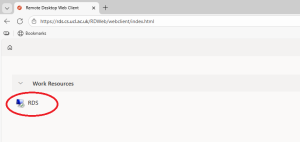
Using the Webclient: open your web browser and goto rds.cs.ucl.ac.uk/rdweb/webclient/index.html and login with your CS username and password
Select RDS
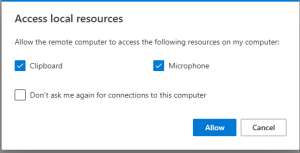
Select Access to your local resources
The Windows desktop will load.
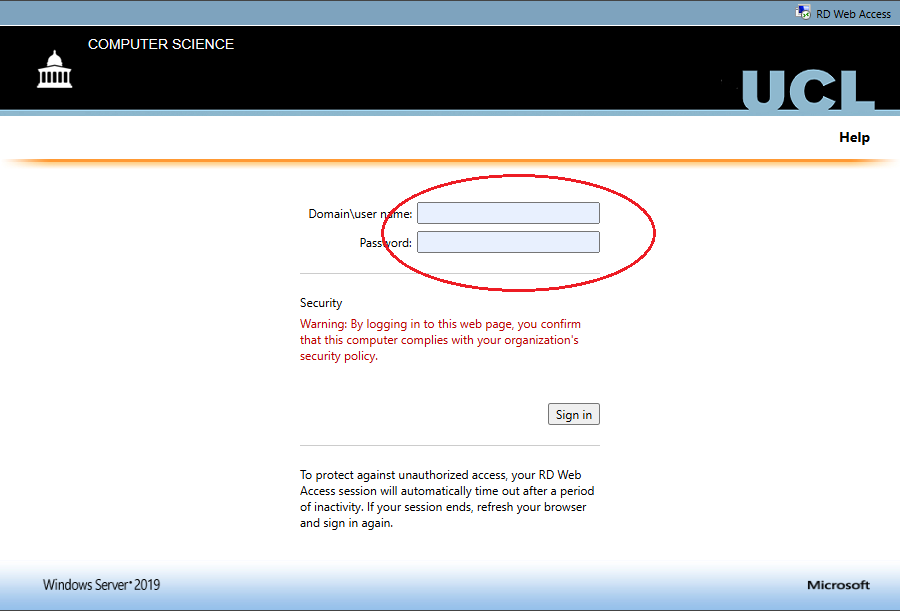
Using Remote Desktop app: enter rds.cs.ucl.ac.uk/RDWeb into your web browser and login with your CS username and password.
Select RDS
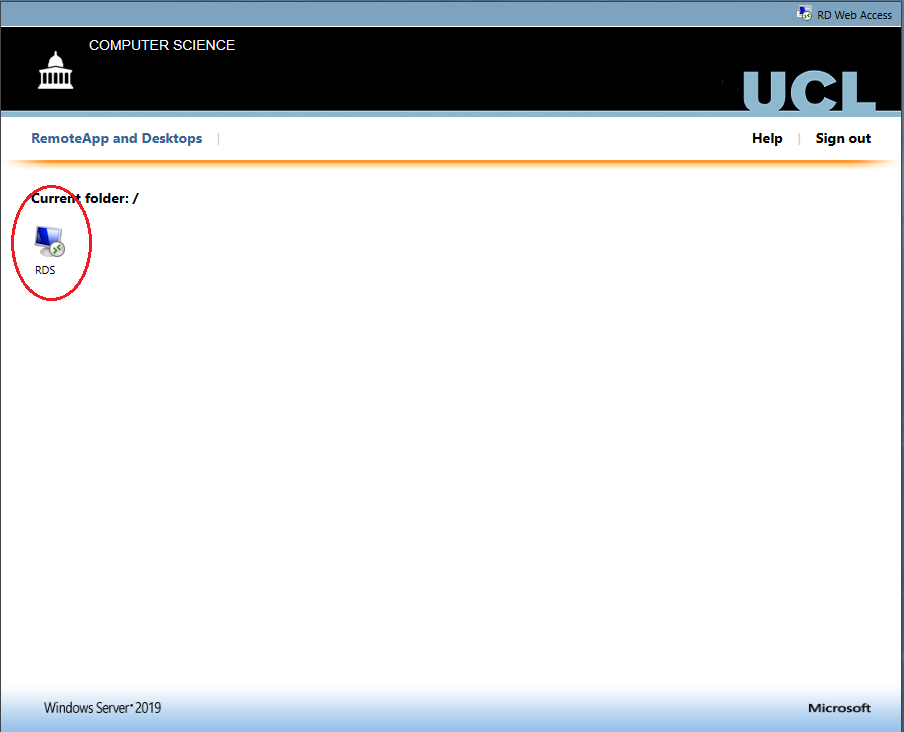
open the file cpub-RDS-RDS-xxxxxxxx.rdp that was downloaded
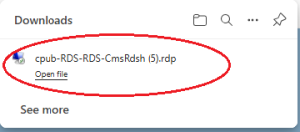
Select Connect.
Login again with your CS username and password.
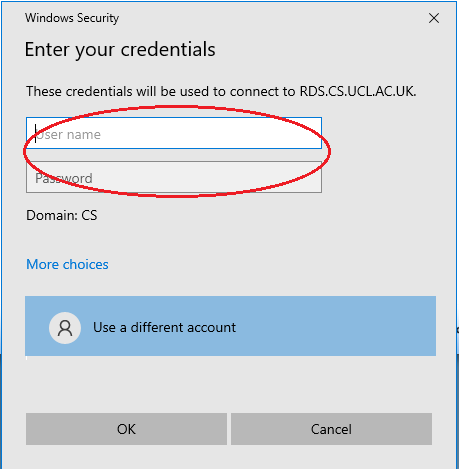
The Windows Desktop will load


